YouTube video gallery integration can solve a common problem: If you’re a YouTuber, educator, marketer, or anyone who publishes regularly on YouTube and also runs a WordPress site, you already know the problem: your best videos are stuck on YouTube while your WordPress site gets almost no video content.
Copying and pasting YouTube iframes one by one is tedious, looks inconsistent, kills your page speed, and gives Google nothing useful to index. What you need is a proper YouTube gallery — one that pulls your videos automatically, looks great, and loads fast.
This tutorial shows you exactly how to build a YouTube video gallery in WordPress using MediaHaven Lite. We’ll cover channel feeds, playlist galleries, grid and carousel layouts, inline playback, and all the display options that make your gallery actually useful.
What You’ll Build
By the end of this tutorial you’ll have one (or more) of:
- A YouTube channel feed gallery — automatically displays your latest channel uploads in a responsive grid or carousel
- A YouTube playlist gallery — displays all videos from a specific playlist, with AJAX Load More
- A YouTube video with inline play — the video plays directly inside the gallery without opening a popup or new page
All with real-time view counts, smart caching, schema.org SEO markup, and lazy-loaded thumbnails.
Prerequisites
- WordPress site with MediaHaven Lite installed and activated
- A YouTube channel or playlist you want to display
- A free YouTube Data API v3 key (we’ll create one in Step 1)
If you haven’t installed MediaHaven Lite yet, go to Plugins → Add New and search for MediaHaven, or download it from MediaHaven Lite.
Step 1: Create Your YouTube Data API Key
MediaHaven fetches your YouTube channel or playlist data through Google’s official YouTube Data API v3. You need a free API key.
Create one in under 3 minutes:
- Go to console.cloud.google.com
- At the top, click Select a project → New Project
- Name it (e.g., “My WordPress Site”) and click Create
- In the left sidebar, go to APIs & Services → Library
- Search for YouTube Data API v3
- Click on it, then click Enable
- Go to APIs & Services → Credentials
- Click + Create Credentials → API Key
- Copy the generated key
Restrict your key (recommended): In the Credentials screen, click Edit on your new key. Under API restrictions, select Restrict key and choose YouTube Data API v3. This prevents misuse if the key is ever exposed.
Add the key to MediaHaven:
- In your WordPress dashboard, go to MediaHaven Lite → Settings → API Settings
- Paste your key in the YouTube API Key field
- Click Save Settings
Using multiple sites or expecting high traffic? MediaHaven supports multiple API keys with automatic rotation. Add two or three keys (each from a different Google Cloud project) — the plugin rotates through them to stay well within the daily quota.
Step 2: Find Your YouTube Channel ID or Playlist ID
YouTube Channel ID:
Your Channel ID is the unique identifier for your YouTube channel. It looks like: UCxxxxxxxxxxxxxxxxxxxxxxxxx
To find it:
- Go to your YouTube channel page
- Click your profile picture → YouTube Studio
- In the left sidebar click Customization → Basic Info
- Your Channel ID is shown at the bottom
Alternatively: MediaHaven has a built-in Channel ID generator — paste your YouTube channel handle or URL and it auto-generates the correct Channel ID for you. Find this inside the View editor when you select YouTube Channel as the feed source.
YouTube Playlist ID:
Open any playlist on YouTube. The Playlist ID is in the URL after list=. For example:
https://www.youtube.com/playlist?list=PLxxxxxxxxxxxxxxxxThe Playlist ID is PLxxxxxxxxxxxxxxxx.
Step 3: Create a YouTube Channel Feed Gallery
Go to MediaHaven Lite → Views → Add New.
Basic Settings
Feed Source: Select YouTube Channel
Channel ID: Paste your Channel ID (or use the auto-generator to create it from your channel handle)
YouTube Thumbnail Size: Choose the thumbnail quality:
- Medium — faster loading, slightly lower resolution
- High / Max Resolution — sharper images, slightly more data
For most sites, Medium is the right balance. If your gallery cards are large, choose High.
Videos Per Page: How many videos to load initially. We recommend 6, 9, or 12 — multiples of your column count so the last row is always full.
Load More Type: Choose how users see more videos:
Load More Button — AJAX button that appends videos without a page reload (best UX for YouTube feeds)
Layout
Layout: Choose your gallery layout. For YouTube channel feeds, the most common choices are:
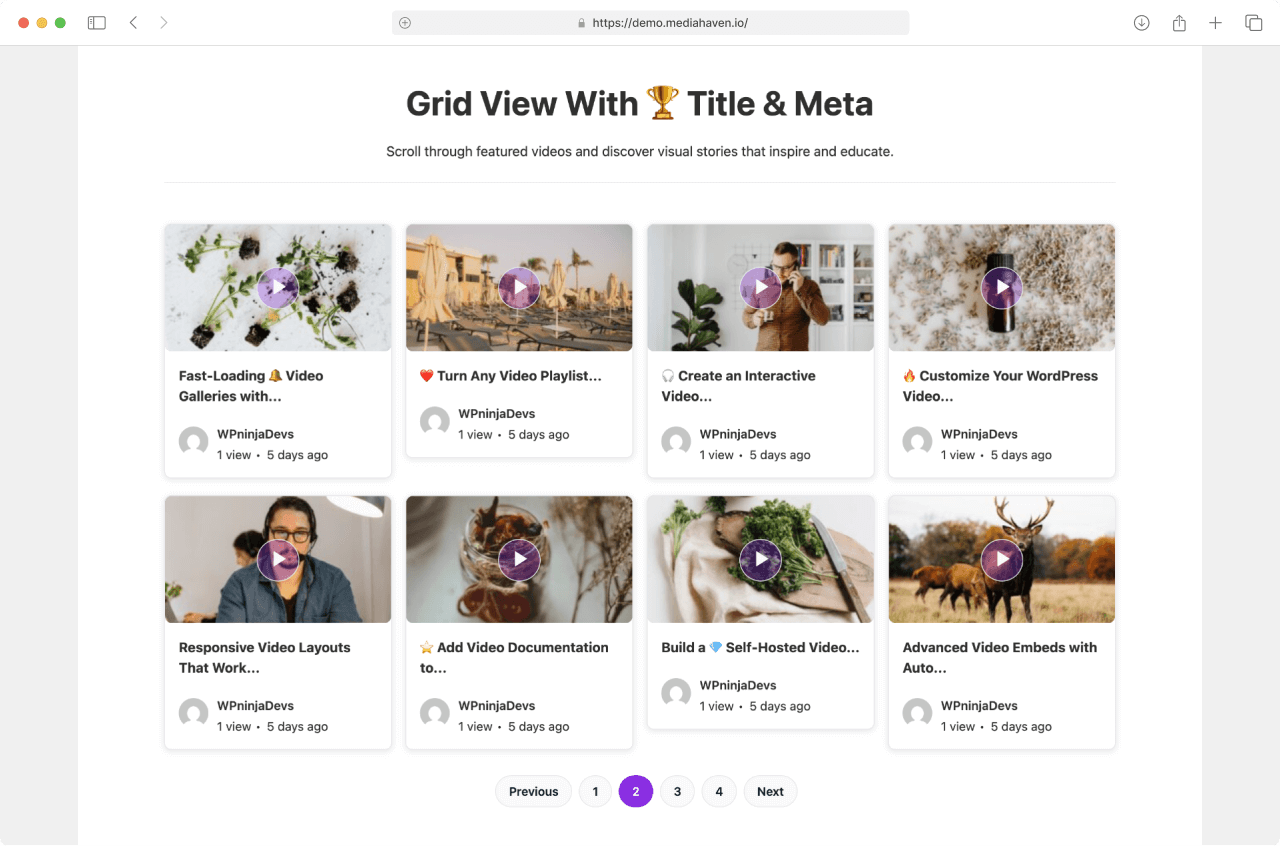
Grid — classic responsive columns. Works for channel pages, video archive pages, and embedded sections. Set columns per breakpoint (e.g., 3 columns on desktop, 2 on tablet, 1 on mobile).
Carousel — a horizontally scrolling slider with navigation arrows. Works great for a “Latest Videos” section on a homepage or sidebar.
Multi-row Carousel — shows multiple rows in a sliding carousel. Good for sections where you want to show a lot of content compactly.
YouTube Display Mode
This is a unique MediaHaven setting that controls how YouTube videos play when clicked:
Popup / Lightbox — clicking a video thumbnail opens a fullscreen lightbox overlay with the YouTube player. Clean, distraction-free viewing.
Inline Play — the video plays directly inside the gallery card where the thumbnail was. The thumbnail animates away and the YouTube player appears in its place, without any overlay. This is shown in screenshot-9 of the plugin and gives a very native, modern feel — similar to how YouTube itself handles playback in search results.
Single Page — clicking a video takes the user to a dedicated single video page with the player, full description, and related videos below.
For most channel feed galleries, Inline Play or Popup give the best engagement. Single Page is better when you want users to read descriptions or find related content.
Display Options — What to Show on Each Video Card
Toggle on or off:
Video title — almost always on. The title is the main click driver.
Author name + avatar — useful if your channel has multiple contributors. For solo creators, you may want to hide this to keep cards cleaner.
View count — MediaHaven tracks view counts within your WordPress site (separate from YouTube view counts). These update via AJAX — meaning the count increments without a page reload whenever a video is watched.
Publish date / relative time — shows “8 months ago” style dates. Good for news or regularly updated channels. Can be distracting for evergreen content.
Like/dislike thumbs — MediaHaven’s built-in engagement system. Visitors can like or dislike videos on your site. Not connected to YouTube likes — these are your own site’s engagement data.
Description excerpt — a short preview of the video description. Good for galleries where you want users to decide which video to watch. Cut excerpt length to 80–120 characters for clean cards.
Step 4: Create a YouTube Playlist Gallery
The steps are identical to the channel feed, with one difference:
Feed Source: Select YouTube Playlist
Playlist ID: Paste your Playlist ID (the PL... string from the YouTube URL)
Playlist galleries are particularly useful for:
- Course or tutorial series (one playlist per course)
- Product demo playlists for WooCommerce stores
- Topic-specific video collections
- Event or conference recordings
Playlists maintain the order you’ve set in YouTube, so the gallery respects your curation.
Displaying specific playlist videos: MediaHaven also supports selecting individual YouTube videos to display — go to Display only selected YouTube videos under feed settings and pick specific videos from your library.
Step 5: Add a Section Header
Above your YouTube gallery, you can add a branded section header — great for homepage sections and dedicated video pages.
In the Header tab of the View editor:
Title — e.g., “Latest from Our YouTube Channel” or “Tutorial Videos”
Subtitle — a short description of the content
View All Link — add a link to your YouTube channel or a dedicated video archive page. Customize the button label (e.g., “Watch on YouTube”, “See All Videos”, “View Full Playlist”).
The header renders cleanly above the gallery grid or carousel.
Step 6: Style Your YouTube Gallery
In the Style tab, you can customize the look of your gallery cards without touching any code.
Card design:
- Background color (card panels vs. transparent/flush cards)
- Border radius (for rounded card corners — popular with modern designs)
- Box shadow and hover shadow (for depth on hover)
- Padding between card content sections
Typography:
- Title font size and weight
- Meta text (author, date, views) font size and color
- Google Fonts selection
Colors:
- Primary accent color (used for hover states, play buttons, and interactive elements)
- Title hover color
If you’ve configured Global Styles, these values inherit automatically and only need to be overridden here when you want a specific gallery to look different from your site defaults.
Step 7: Preview and Publish
Before saving and embedding, use the Live Preview panel in the View editor. This renders your gallery in real time as you adjust settings — layout, columns, card design, header — all update without saving or refreshing.
Once you’re satisfied, click Save and copy your shortcode.
Embed it using any of these methods:
Gutenberg Block: Add the MediaHaven Shortcode View block → select your gallery → see a live preview in the editor.
Shortcode (Classic Editor, page builders):
[wpnd_mhpro_views* id="5"]Works in Elementor’s shortcode widget, Divi text modules, WPBakery shortcode elements, Beaver Builder HTML modules, and any other builder.
Step 8: The Single Video Page
Every video in MediaHaven has a dedicated single page — a standalone URL with the full video player, title, description, author, tags, and a related videos section.
The URL structure uses your custom slug (configurable in Settings). For example:
https://yoursite.com/video/my-video-title/The single video page layout is configured in the Single Page tab of your video settings:
Player position — full-width video at the top vs. video + sidebar layout
Sections shown — title, description, author block, category/tag links, view count, like/dislike, related videos shortcode
Related videos — paste any of your gallery shortcodes into the Related Posts Shortcode field to show related content below the player. MediaHaven renders the related gallery using your existing View configurations.
The single page also includes schema.org VideoObject markup automatically, making each video page independently indexable by Google.
Understanding MediaHaven’s YouTube Caching
One of the most important things to understand about MediaHaven’s YouTube integration is how caching works.
When you create a YouTube channel or playlist gallery, MediaHaven fetches the video data from the YouTube API and stores a local copy in your WordPress database. This cached copy is what your site serves to visitors — not a live API call on every page load.
Benefits:
- Gallery pages load faster (no waiting for YouTube API response)
- You stay within Google’s daily API quota even on high-traffic days
- Galleries remain visible even if the YouTube API has temporary outages
- View counts and other locally tracked metrics are separate from API calls
Cache refresh: MediaHaven includes a cron manager that automatically refreshes the cached YouTube data on a schedule, keeping your channel feed current. You can also manually clear the cache under Settings → Clear Cache to force an immediate refresh.
What You Get Out of the Box
Every YouTube gallery created with MediaHaven includes these automatically, with zero extra configuration:
☑ schema.org VideoObject markup — structured data that makes each video discoverable in Google Search
☑ Lazy loading — thumbnails load only when they scroll into the viewport
☑ WebP-optimized thumbnails — automatically compressed for faster loading
☑ Keyboard shortcuts — Space, F, M, arrow keys for player control
☑ Responsive layouts — galleries adapt perfectly to any screen size
☑ Smart asset loading — CSS and JS only load on pages with a gallery shortcode
Upgrade Path: What Pro Adds for Video Galleries
When your YouTube gallery grows and you need more:
Ajax Live Filter (Pro) — visitors can search your video library, filter by category, tag, duration, and resolution — all without a page reload. Makes large YouTube channel galleries genuinely navigable.
Video Chapters (Pro) — add clickable chapters to individual videos. Particularly useful for long tutorials or webinar recordings where viewers want to jump to specific sections.
VAST Video Ads (Pro) — run pre-roll, mid-roll, or banner ads alongside your YouTube embeds, independent of YouTube’s own ad system.
All Pro features are available from $79/year at mediahaven.io/pricing with a 14-day money-back guarantee.
Troubleshooting Common YouTube Gallery Issues
Gallery shows “No videos found” → Check that your YouTube API key is correctly saved in Settings → API Settings → Verify your Channel ID or Playlist ID is correct (no spaces or extra characters) → Make sure the YouTube Data API v3 is enabled in your Google Cloud Console project
Gallery loads slowly → Reduce the number of videos per page (try 6–9) → Check that lazy loading is enabled in your View settings → Consider switching thumbnail size from Max Resolution to Medium
YouTube API quota errors → Add additional API keys in Settings → API Settings (MediaHaven rotates them automatically) → Reduce how frequently the cache refreshes
Videos not appearing in the expected order → For channel feeds: videos are displayed in reverse chronological order (newest first) → For playlist galleries: videos appear in the order set in your YouTube playlist
Summary
Building a YouTube video gallery in WordPress with MediaHaven is a process that takes about 15 minutes from start to live gallery — and the result is far more capable than any iframe embed. You get smart caching, SEO schema markup, responsive layouts, engagement features, and a live preview to design confidently before publishing.
👉 Download MediaHaven Lite free
👉 View Live YouTube Gallery Demo
Questions about your YouTube gallery setup? Leave a comment below.